People who have been following me on social media may know that, for the past few years, I’ve been working on a fan translation project for a Sega Saturn RPG called Magic School Lunar. With technical and initial playtesting work wrapping up, that project is finally entering the late phases and I’m now reaching a point where I’m going to be doing a lot of rewriting of the English text. The traditional approach, in both professional localizations and fan translations, involves working in a spreadsheet with access to the original language and translation side by side. (In fan translations, it’s not even rare to work by editing raw text files.) It’s not the most convenient or fun to be writing entirely within a spreadsheet though, especially when there are technical constaints to be thinking about. This game has a strict character limit per line and a maximum of three lines per text box, and I found myself wishing for a nice way to visualize how text will look in-game so I can ensure what I’m writing will actually look good in-game. A spreadsheet just wasn’t going to cut it. But then, of course, I realized… I am a programmer. Why don’t I just write my own? So I did.
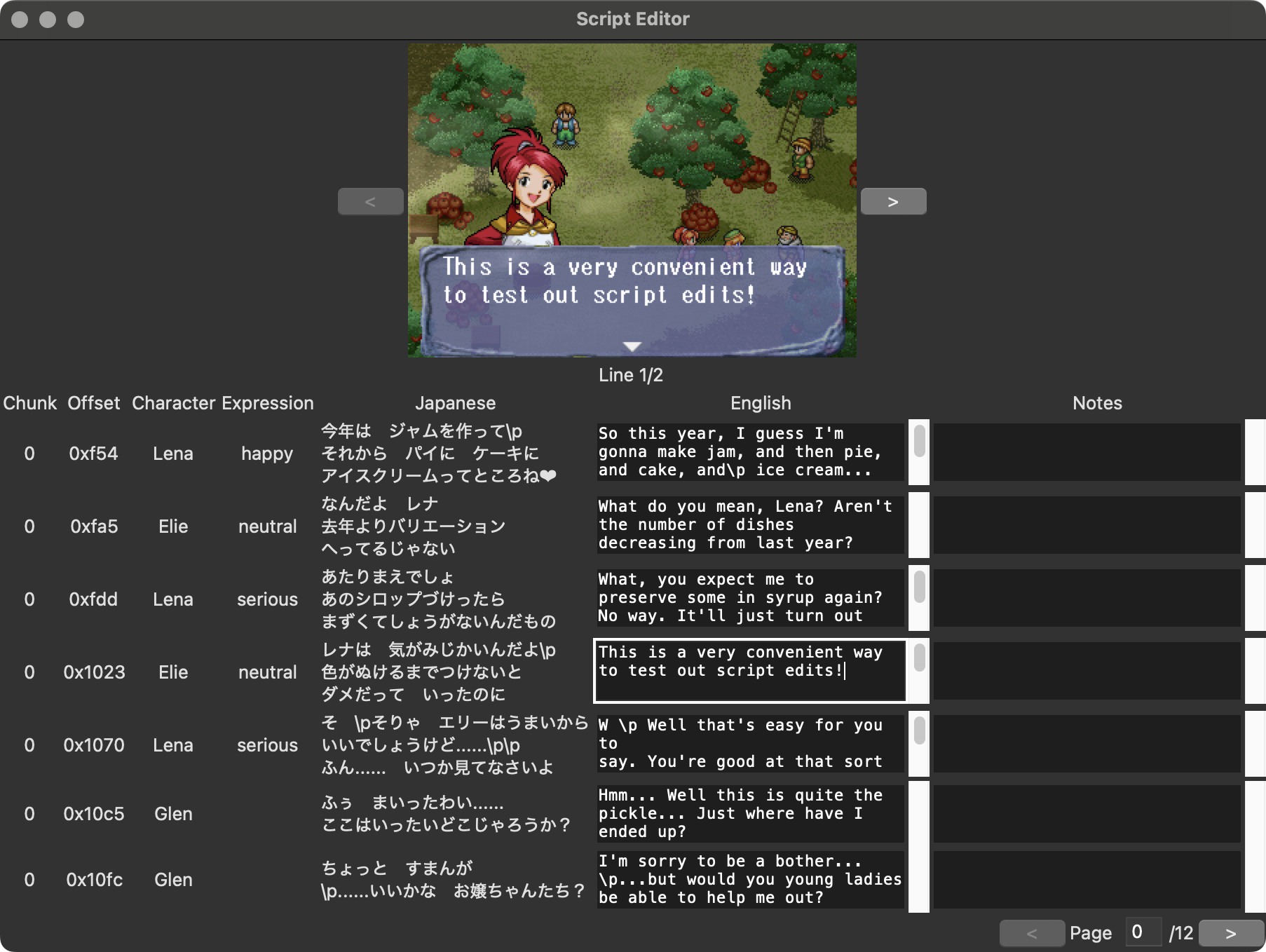
My work is based around CSV files that contain the script and metadata for every line of text in the game, and between the script itself and metadata such as what character is speaking, I had in principle enough data to mock up what any given line should look like in-game. My basic goal was to reproduce a spreadsheet-like workflow but with added screenshot visualization that updates in realtime as I work. Now that I’ve had the chance to try it out, I can say it definitely works just as well as I’d hoped. It’s much easier to catch mistakes should I find myself overflowing lines, and it’s very useful for making aesthetic decisions about text formatting too.
I decided to write a GUI app rather than a web app, for no particular reason other than because I happen to like desktop apps, and ended up using Tk as the windowing toolkit so it would be easy to run it on other platforms if someone needs to run it on something other than macOS. Although I briefly considered using a compiled language1 I ended up deciding on Python. This was partly because Python happens to have very good bindings for Tk, and partly because I’ve passed my CSVs through Python-based tooling already so I knew that the CSVs I’d output would result in minimal formatting/git repo churn. I’ve looked at Tk apps a few times but I’ve never written one of my own, so I was pleasantly surprised how easy it was to work with. I spent a few hours on this project over the course of a few days, and quite honestly most of that time was just spent picking up the basics of Tk.
I didn’t start out with the GUI though. This was all about the screenshot preview, so I figured I’d handle that first. I’ve done a little work with Python’s Pillow library before, which felt like it’d be right tool for the job, and thankfully it was quite easy to work with. All I needed was basic image compositing, and Pillow handles that very well. There were only really three elements I needed to simulate a proper screenshot:
- A scene from the game with no text or character portrait
- The game’s font and positioning data for where text goes
- The portraits used when named characters speak and their positioning data
I had the raw images for the font and portraits already from the translation process, and the positioning data wasn’t too hard to find either. Magic School Lunar uses a fixed-width font2, so there’s no fancy inter-character spacing to reverse-engineer; a given index on a line is always going to go in exactly the right place. I simply grabbed real screenshots of the game and worked out exactly where where the letters belonged, then I rendered new text on top of the existing text to make sure everything was aligned exactly where it belongs. It was easy to handle the portraits as well, which always go in the same place3, so it didn’t take me long to add that either. After I was confident I had the positioning completely right, I ran off a build of the game with all the text blanked out so I could grab myself an in-game screenshot of an empty text box with no character speaking.
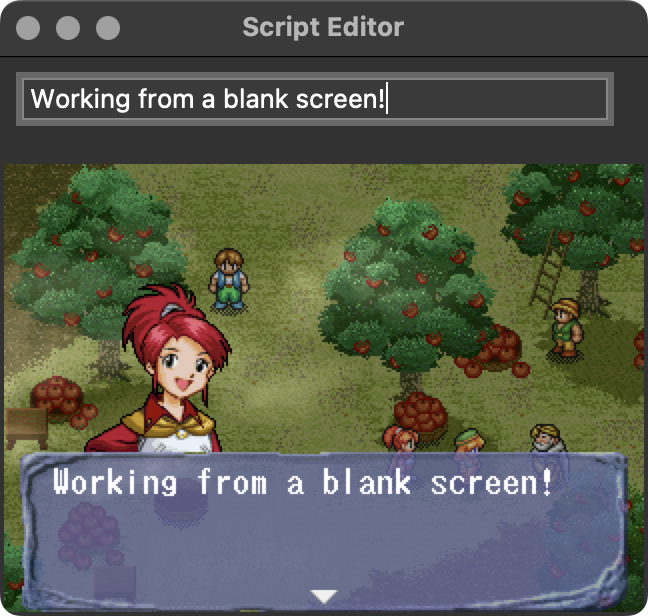
Once I had the actual screenshot generation taken care of, I got to work building out the real UI. I’d been prototyping with a simple MVP that just rendered the screenshot out from a single text input box and which was missing the actual script editor, and I was slightly dreading the work of laying out the real thing. I shouldn’t have worried though, since it turned out to be quite easy. I used Tk’s grid manager4 to handle the layout. It divides the screen into rows and columns, with each element laid out on a specific column and row. It’s easy to think about, but it also just happens to be a perfect match for laying out a bunch of UI elements in a table—exactly my usecase, in other words.
I was also pleasantly surprised just how easy it was to integrate the generated screenshot into the UI. Tk itself assumes images you’re displaying are coming from some kind of bitmap file, but Tk+Pillow seems to be a popular combination because Pillow has built-in Tk integration and can wrap a Pillow-generated image in a Tk-compatible image class that allows you to put a generated image anywhere that Tk accepts an image.
My only big UI issue came when I started loading larger script files. My original plan had been to populate the full UI with the entirety of a script file and implement a scrolling viewport, much like in a traditional spreadsheet app. Unfortunately, it turns out Tk has big issues rendering huge numbers of elements within a frame and it would spin its wheels for an extended period loading any input file with more than a few hundred rows. If this were an app I was making for other people, I might have chosen to try to optimize this by having it dynamically load and unload elements as you scroll, but I didn’t really need something that fancy for myself; I chose to instead just paginate the data with a limited number of rows onscreen at once along with back/forward buttons to switch pages. It works well enough for my own needs.
All in all, I was very happy how fast this all came together. I’ve already been using this to do little changes, and I know it’s going to come in handy as I get deeper into script editing. If you want to check the source code for yourself, I’ve put it up on Codeberg.
-
I actually considered Swift at one point, but I really didn’t want to limit this to only working on Mac.↩
-
Fun fact: this game uses the exact same font as the two Sega CD Lunar games in Japanese, so the English version is reusing the font from the English versions of those games for that extra nod to series history.↩
-
The real game sometimes puts these on the right instead of the left, but I didn’t bother simulating this since it won’t affect how I’ll be writing.↩
-
Tk-knowers will probably recognize that despite the grid manager being around since 1996, it’s still the “new” system to a lot of people and most code examples online are still using the older, fiddlier
packsystem. I decided to deal with the annoyance of having fewer examples to follow in exchange for getting to use something easier.↩